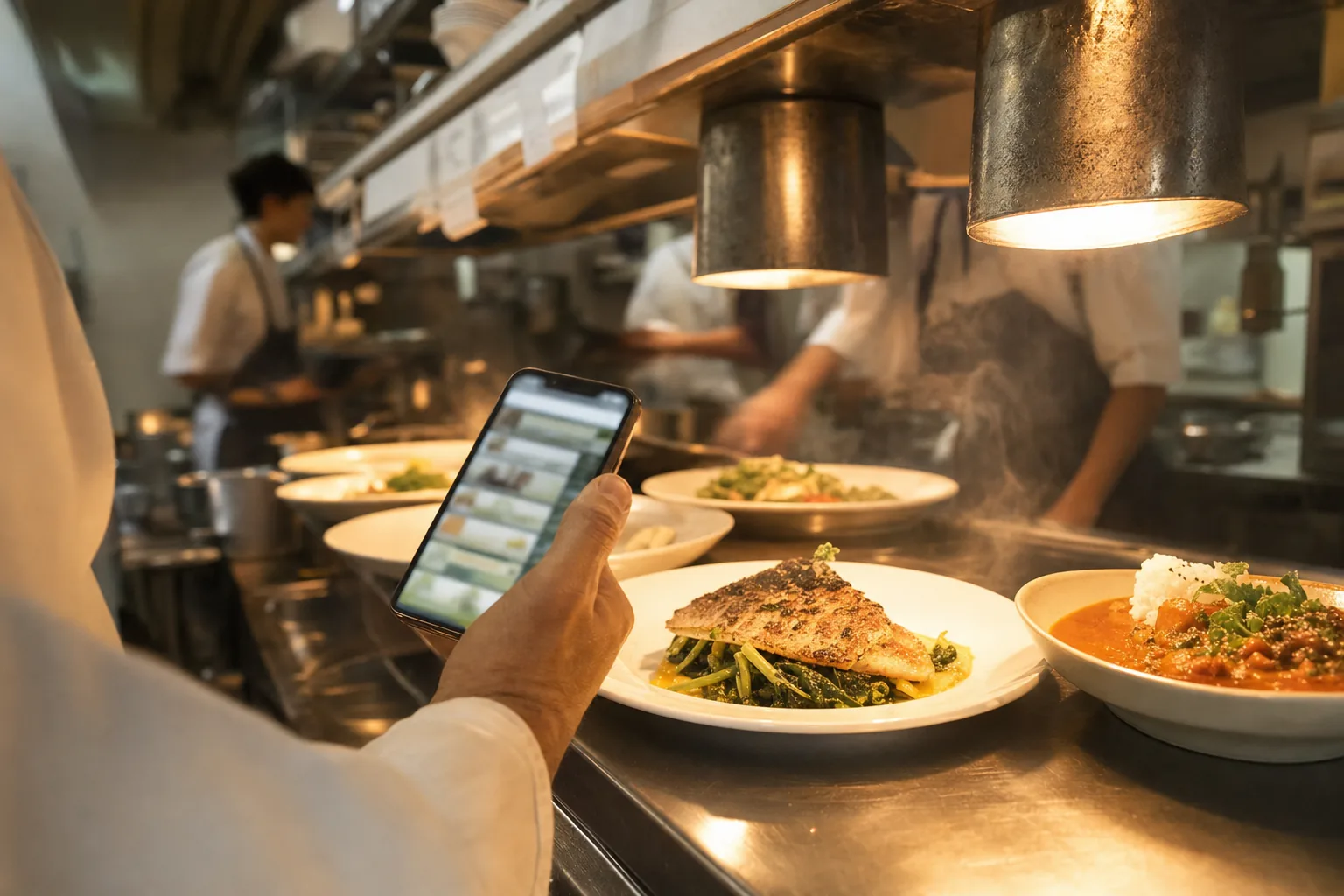
Give menu accuracy a place in the service routine
A digital menu is useful when the information matches what your team can serve. Check prices before a new menu or service begins, and agree who updates availability when a dish runs out. That can be a short handover between the kitchen and the person who maintains the restaurant workspace.
Start by opening the correct restaurant. Owners and managers can edit menus; Java staff accounts are read-only. A missing edit control can be a permissions issue rather than a loading problem. Ask an owner to check access, and avoid sharing sign-in credentials to work around it.
Change the price for the portion you actually sell
Go to Menu, open the dish and review its priced portions. Update each affected price and save. If you offer more than one size, check them individually: changing one portion should not be treated as changing every portion. Confirm that the restaurant’s currency is correct before assessing the guest display.
Use a second window or phone to open the published menu and refresh it after saving. Check the formatted amount beside the correct portion name. Saved menu changes do not require printing a new QR code when its destination remains unchanged, but an already-open guest page may need a refresh to show the new data.
- Confirm the restaurant and dish.
- Review portion names and update the affected prices.
- Save and wait for the workspace to confirm the change.
- Refresh the guest menu and compare every affected price.
Mark availability without erasing useful menu information
Use the dish availability control when the whole dish is sold out. In the Java application, individual portions also have availability controls. A dish is available only when the dish itself and at least one portion are available. If every portion is unavailable, guests see the dish as sold out even when its dish-level switch is on.
The table-ordering workspace supports dish availability, but its portion editor does not provide the same individual availability control. Use the options actually present in your workspace. Hiding a category is a different decision: it removes that category from the guest menu while keeping its dishes in the workspace.
When ingredients return, restore the intended availability and check the public menu again. Keep a handover note so a sold-out setting is not forgotten at the next shift.
Verify the result and recover carefully
If saving fails, read the message and check your connection before trying again. In the workspace, another teammate’s edit can require loading the latest menu and reviewing your changes before saving. Do not keep submitting an old version without checking what changed.
If a guest cannot open the menu at all, investigate publication and restaurant status as well as the link. Java exposes menus only for active, published restaurants. A dish toggle cannot make an unpublished or suspended restaurant visible. An owner should check publication; suspension requires support rather than a menu edit.
Frequently asked questions
Do I need a new QR code when prices change?
No. Price and availability changes are saved to the same published menu, so the existing code opens the updated menu. Refresh the guest page after saving to confirm what guests now see.
How do I mark a dish as sold out?
Open the dish in Menu and switch its availability off, or switch off individual portions where your version offers that control. Guests then see the dish as sold out instead of it disappearing without explanation.
Why can’t I edit the menu?
Staff accounts are read-only. If the edit controls are missing, ask an owner to check your role rather than sharing a sign-in or creating a second workspace for the same restaurant.
What if a guest says the menu does not open?
Check that the restaurant is published and active. Menus are only public for published, active restaurants; a dish toggle cannot make an unpublished or suspended restaurant visible.
- #menuprices
- #soldout
- #menuavailability
- #digitalmenuupdates